
📌 Key Takeaways
- Build first — never upload your raw src folder.
- Upload the build’s contents to public_html, or connect Git for auto-deploys.
- Add an .htaccess rewrite so refreshing deep links doesn’t 404.
- Enable free SSL and force HTTPS.
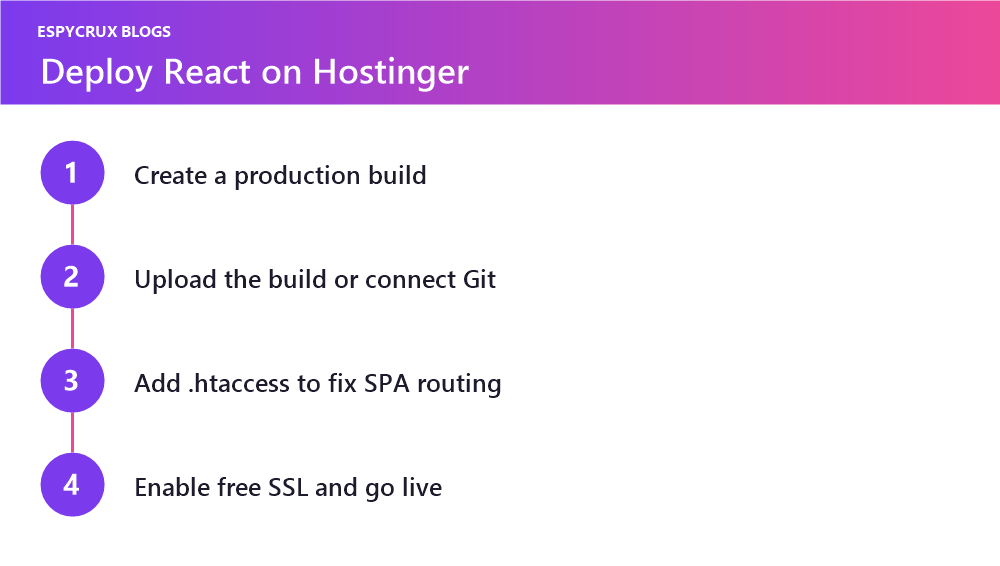
Deploying a React website used to mean wrestling with servers, SSH keys, and build pipelines. In 2026, Hostinger makes it genuinely simple — you can take a React app from your local machine to a live domain in under 15 minutes. This guide walks through every step, whether you deploy by uploading a build or by connecting Git for automatic updates.
What You Need Before You Start
- A finished React project that runs locally with
npm run devornpm start. - An active Hostinger plan (any Premium, Business, or Cloud plan works).
- Node.js and npm installed locally so you can create a production build.
- A domain name — either registered with Hostinger or pointed to it via DNS.
Step 1: Create a Production Build
React apps you run locally are not optimized for the web. Before deploying, generate a production build that minifies your code and bundles assets. In your project folder, run the command that matches your setup:
- Vite:
npm run build— outputs adistfolder. - Create React App:
npm run build— outputs abuildfolder.
This folder contains plain HTML, CSS, and JavaScript. That is all Hostinger needs to serve your site — no Node.js runtime required for a standard single-page app.
Step 2: Choose Your Deployment Method
Hostinger gives you two clean paths. Pick based on how often you update the site.
Method A: Upload the Build (Fastest for One-Off Sites)
- Log in to hPanel and open File Manager.
- Navigate to the
public_htmlfolder of your domain. - Delete the default placeholder files (like the parking-page
index.html). - Upload the entire contents of your
distorbuildfolder — not the folder itself, just what is inside it. - Visit your domain. Your React site is live.
Method B: Connect Git (Best for Ongoing Projects)
- Push your project to a GitHub, GitLab, or Bitbucket repository.
- In hPanel, open Advanced → Git.
- Paste your repository URL and set the branch (usually
main) and the target directory (public_html). - Deploy. To update the live site later, just push to your branch and click Deploy again.
Git deployment pulls your source, so for a build-based framework you will still want to commit your built files or run the build step where supported.
Step 3: Fix Routing for Single-Page Apps
React Router handles navigation in the browser, but when a visitor refreshes a deep link like /about, the server looks for a file that does not exist and returns a 404. Fix this by adding an .htaccess file in public_html that redirects all requests back to index.html:
<IfModule mod_rewrite.c>
  RewriteEngine On
  RewriteBase /
  RewriteRule ^index\.html$ - [L]
  RewriteCond %{REQUEST_FILENAME} !-f
  RewriteCond %{REQUEST_FILENAME} !-d
  RewriteRule . /index.html [L]
</IfModule>
With this in place, every route resolves correctly on refresh and direct access.
Step 4: Add SSL and Go Live
In hPanel, open Security → SSL and install the free Let’s Encrypt certificate for your domain. Once active, force HTTPS so every visitor gets a secure connection. Clear your browser cache and load your domain — you now have a fast, secure, production React site.
Common Mistakes to Avoid
- Uploading the folder instead of its contents — your
index.htmlmust sit directly inpublic_html. - Forgetting the build step — never upload your raw
srcfolder. - Skipping
.htaccess— the number-one cause of “works on homepage, 404 everywhere else.” - Wrong base path — if the site loads blank, set
base: './'in your Vite config and rebuild.
Final Thoughts
Hostinger turns React deployment into a five-minute task once you know the flow: build, upload or connect Git, fix routing, enable SSL. For a portfolio or landing page, the manual upload is quickest. For anything you will keep improving, wire up Git so a single push ships your changes. Either way, your app is now live on a fast, secure host — ready to share with the world.
Frequently Asked Questions
No — a standard single-page React app builds to static files that Hostinger serves directly. You only need Node hosting for server-side rendering.
React Router handles routes in the browser. Add the .htaccess rewrite so the server sends every path to index.html.
The contents — your index.html must sit directly inside public_html.